
Language: Deutsch · English
 Login
Login
Sign in to the server – by password, single sign-on (e.g. Microsoft), anonymously, with mandator selection or biometrically.
HOW-TO USER UPDATED: JUL 2026 APPLIES TO NUCLOS APP 1.0
On this page
With username and password
Choose a server (see connect a server), enter user name and password, tap Log in. The app keeps the session via a cookie (like the Web Client).
Single sign-on (e.g. Microsoft)
If an SSO service is active on the server, the app offers it as its own login button at start – e.g. Nuclos on Microsoft. Tapping it opens the provider's sign-in page (OAuth2 / OpenID Connect, authorization code grant); after a successful sign-in the app session is authorised – the same principle as in the Web Client.
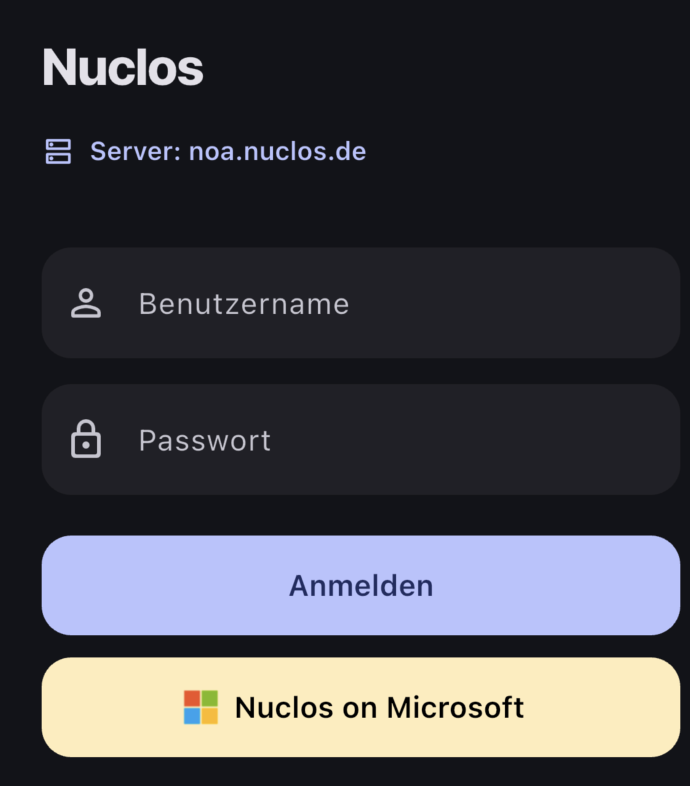
Signing in via a configured SSO service (here „Nuclos on Microsoft“).
Configured on the server
Which SSO services appear as buttons is configured on the server by administration – see SSO configuration (OAuth2/OIDC, callback URL, user mapping). The user is matched to the Nuclos account by e-mail or username from the ID token.
Flow, WebView and user mapping in detail: Single sign-on (SSO).
Explore anonymously
If the server allows anonymous access, Explore anonymously appears – ideal to view a demo without credentials.
Choose a mandator
On mandator-capable Nuclets the app asks, after a successful login, which mandator you want to work in – only then is the session usable (like the Web Client).
Biometric login
If biometric login is enabled for the server, the app signs you in via Face ID / Touch ID – it is offered automatically on launch.
New account, forgotten credentials, expired password
- If the server allows self-registration, a link on the login screen leads to account creation.
- Forgot username or password? opens the e-mail self-service.
- If your password has expired, the app requires a password change before sign-in.
Full details under Account and password.
After login: notices & news
Right after login the app – like the Web Client – shows confirmation-required notices (e.g. the privacy policy) that must be accepted; declining signs you out immediately. Informational, unread news follow.
Related pages
Überblick
Inhalte