
Language: Deutsch · English
 Business object
The heart of every Nuclos application: business objects define your data model – table, forms and API are generated automatically.
KONZEPT LOW-CODE UPDATED: JUL 2026 APPLIES TO NUCLOS 4.2026.X
On this page
What is a business object?
In Nuclos all of your company's data is organised in business objects (BO). A business object corresponds to an entity in the data model – an abstraction of real things such as customer, article or order. From the BO, Nuclos automatically derives the database table, the forms and the REST/rule API.
BO and process
A business object may – but need not – have a status model. Use it to model processes, e.g. ordered → delivered → paid.
Menu: Configuration → Business object
1. Create, edit, delete a business object
The first page of the BO wizard lists the existing business objects (filterable and sortable).
- Create: enter a name and choose a Nuclet. The name is the basis for the table name; the internal name may have at most 25 characters. Duplicate names are only allowed in different Nuclets.
- Edit: select the BO and continue with Next.
- Delete: removes metadata and the database table. Only possible once no other BO references it.
Caution
Deleting removes all data irreversibly. A deleted BO cannot be restored.
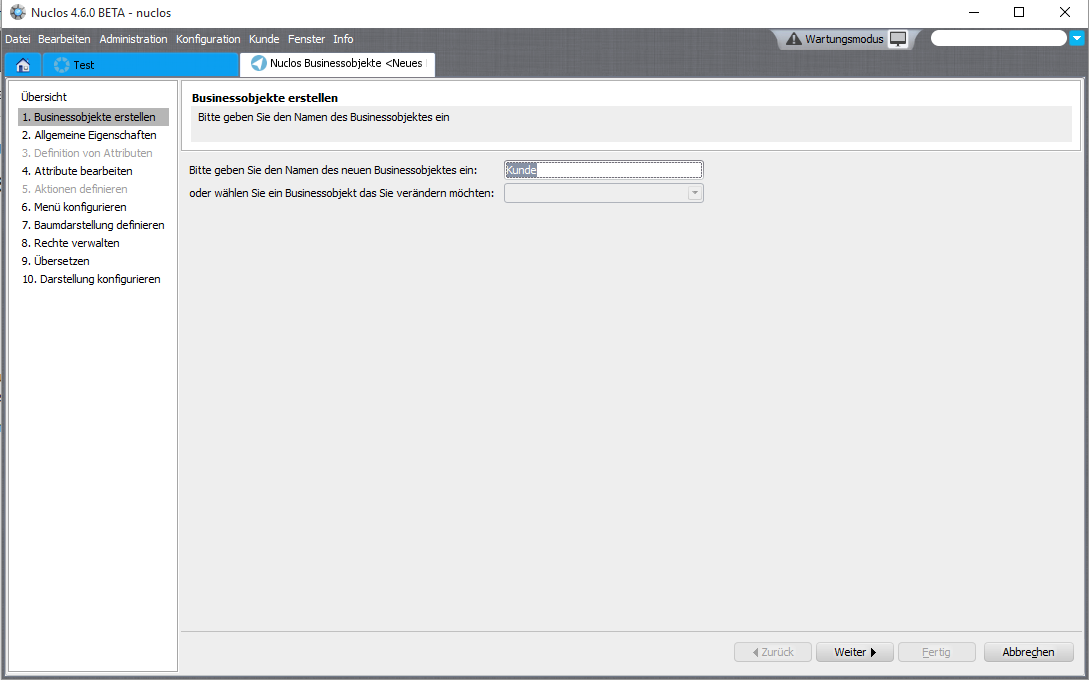
Step 1: overview and creation of business objects.
2. General properties
- Label/window title, table name / internal BO name (basis of the method names in the BusinessRule API).
- Editable? – if unchecked, the BO is read-only (e.g. interface data, fixed value lists).
- Menu path (separate sub-folders with
\), custom icon, keyboard shortcut. - Search form required/opened directly, split view, history.
- Enable a status model (then it becomes mandatory) and an identifier prefix (e.g.
KU0716-00001). - Mandator dependency incl. initial fill and uniqueness per mandator.
- Technical variants: virtual BO (view), write proxy, thin BO (IDs only, more performance), proxy BO/interface, generic BO, object generator for cloning.
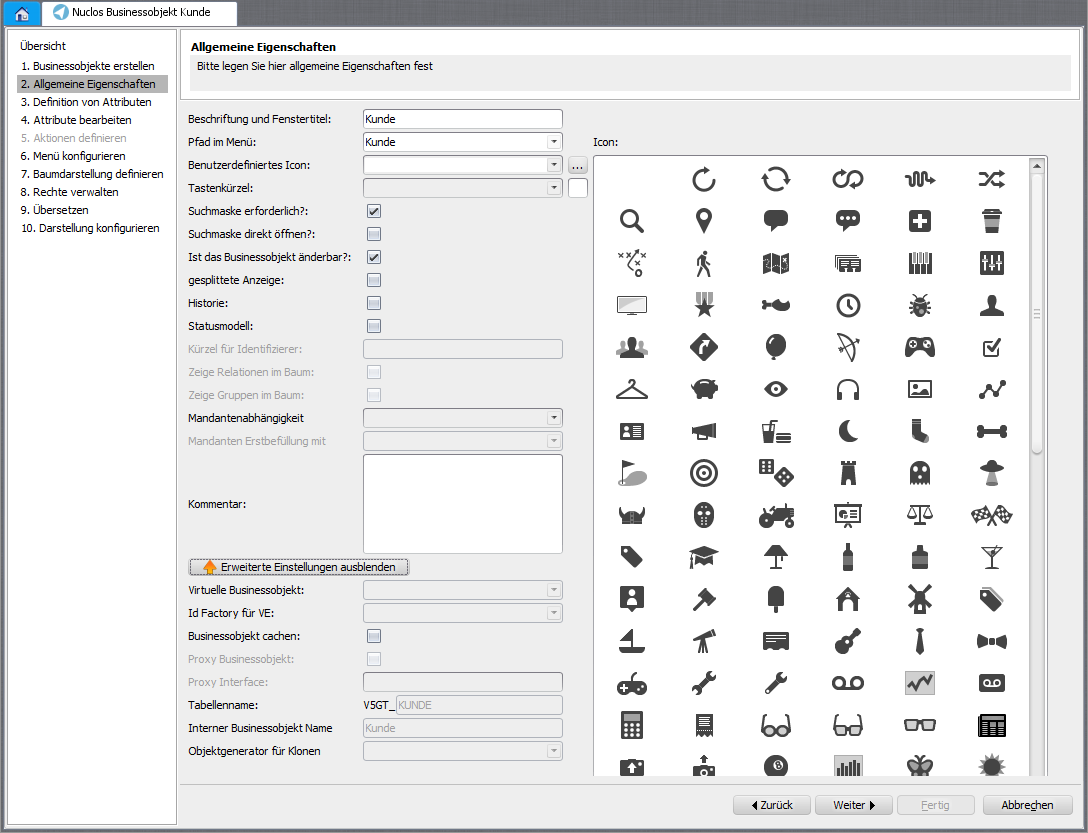
Step 2: general properties of the business object.
3.–4. Define and edit attributes
Attributes (fields) can be created manually or taken over from another BO or a database table. Set the order via arrow buttons or drag-and-drop; it is the default of the list view.
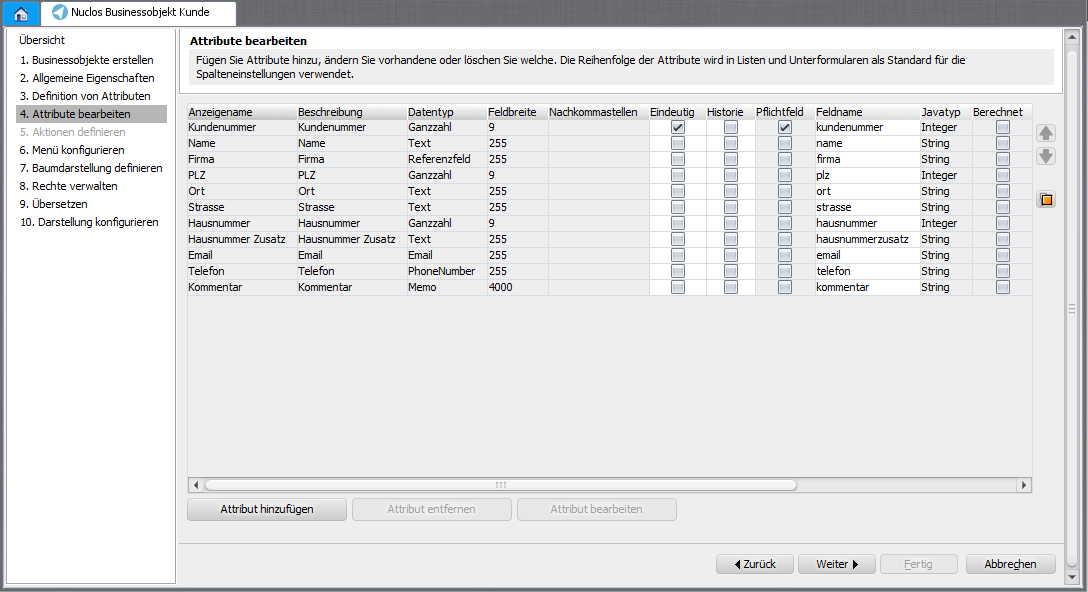
Step 4: maintain the business object's attributes.
Data types
| Data type | Java type | DB type | Length | Note |
|---|---|---|---|---|
| Text | java.lang.String | varchar | 255 | Standard text field |
| Memo | java.lang.String | varchar | 4000 | Multi-line text |
| Text (Large Object) | java.lang.String | clob | 2147483647 | Very long text |
| Integer | java.lang.Integer | number | 9 | Whole number |
| Decimal (9,4) | java.lang.Double | number | 9 | Format via pattern, e.g. #,##0.00 |
| Yes/No | java.lang.Boolean | number | 1 | Mandatory, no null values |
| Date | java.util.Date | date | – | Format via pattern, e.g. dd.MM.yyyy |
| Reference field | java.lang.String | varchar | 255 | Reference to another business object |
| Lookup field | java.lang.String | varchar | 255 | Pick from reference BO, only the text is stored |
| E-mail / PhoneNumber / Hyperlink | java.lang.String | varchar | 255/1000 | Special data components |
| Document / Image / Binary (LOB) | – | blob | – | Files and images |
| Auto number | java.lang.Integer | number | 9 | Automatically incremented |
| Encrypted text | – | varchar | 255 | Stored encrypted |
Key attribute properties
- Display name (label), description (tooltip), data type, min/max (numbers/dates), multilingual.
- Field name (identifier in rules/layout), DB column name, attribute group (for status-dependent rights).
- Mandatory, unique (possibly combined), indexed, default value.
- Calculation expression (Groovy, live in the form, see client-side rules) vs. calculation rule (data source/database object on read) and calculate on request only.
- Background colour (Groovy or data source), history, hidden, modifiable (overrides group/status rights).
Reference field / relation
A reference points to another business object or to an integration point. Options: cascade delete, search field (LOV) and a display pattern of concatenated attributes, e.g. ${kundennummer} - ${name}. A value list provider can be assigned across attributes.
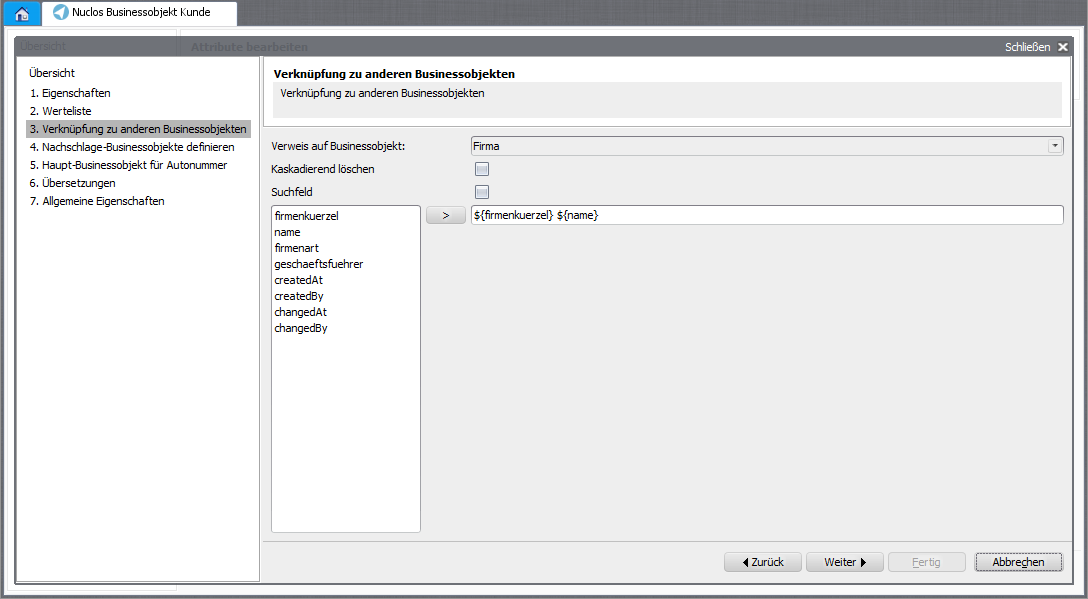
Reference field/relation to other business objects.
5.–6. Actions, contexts and menu
With actions you design several layouts/processes for one BO (e.g. company vs. private customer). Contexts control which subform BOs the web client search includes. The menu path can be refined per action; with New? the input form opens directly.
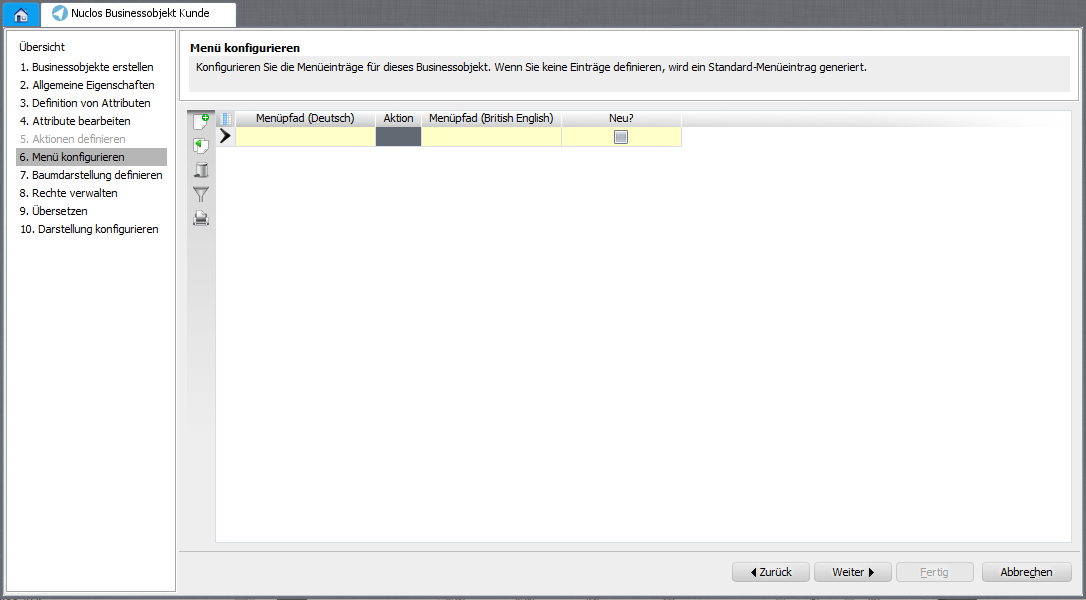
Step 6: configure the menu.
7. Labelling and tree view
Title (window title/history/tree) and info (tooltip) are built from attributes + static text, e.g. ${kundenname} (${kundennummer}) - ${nuclosState}. In the tree view you embed referencing BOs as well as dynamic BOs and document attachments as child nodes (grouping, folders, reference fields).
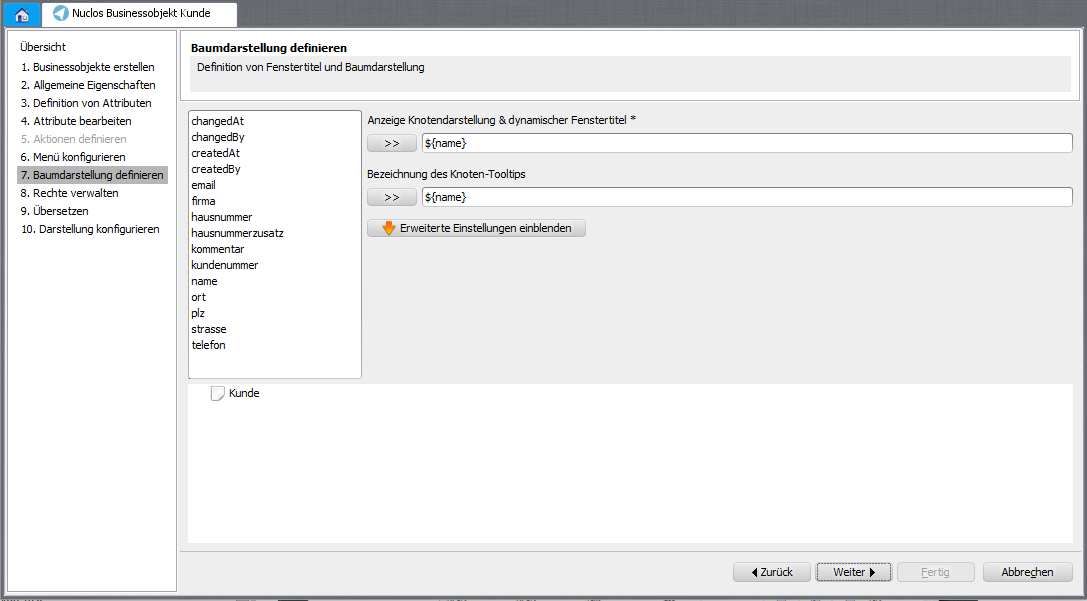
Step 7: configure the tree view.
8.–10. Rights, translation and presentation
- Rights & locking: maintain permissions per user group and enable the locking logic.
- Translate: BO name, menu path, node/tooltip and actions (DE/EN).
- Presentation: automatically generate/update a layout (overwrites any existing one!), grouping by attribute groups, subforms, editing fields, row background colour (Groovy).
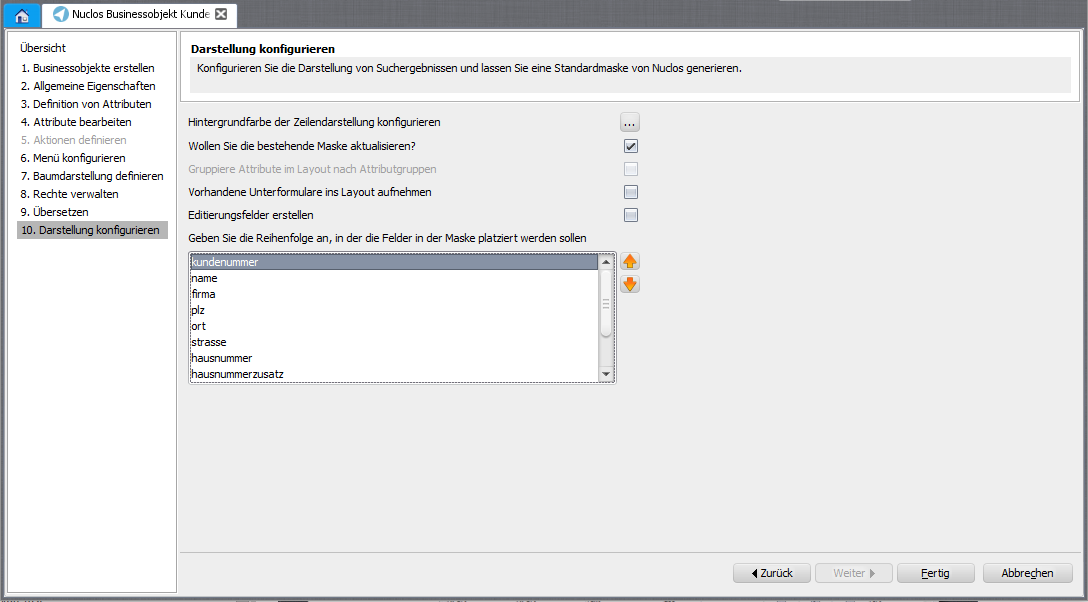
Step 10: configure presentation/layout.
Tip
Before creating, briefly plan the attributes and relations so the data model stays easy to extend later.
Related pages
Überblick
Inhalte