
Language: Deutsch · English
 Single sign-on (SSO)
Sign in with a configured SSO service – e.g. „Nuclos on Microsoft“ (OAuth2 / OpenID Connect).
HOW-TO USER UPDATED: JUL 2026 APPLIES TO NUCLOS APP 1.0
On this page
The app supports single sign-on via OAuth2 / OpenID Connect – the same SSO services as the Web Client. A typical service is „Nuclos on Microsoft“ (Microsoft Entra ID).
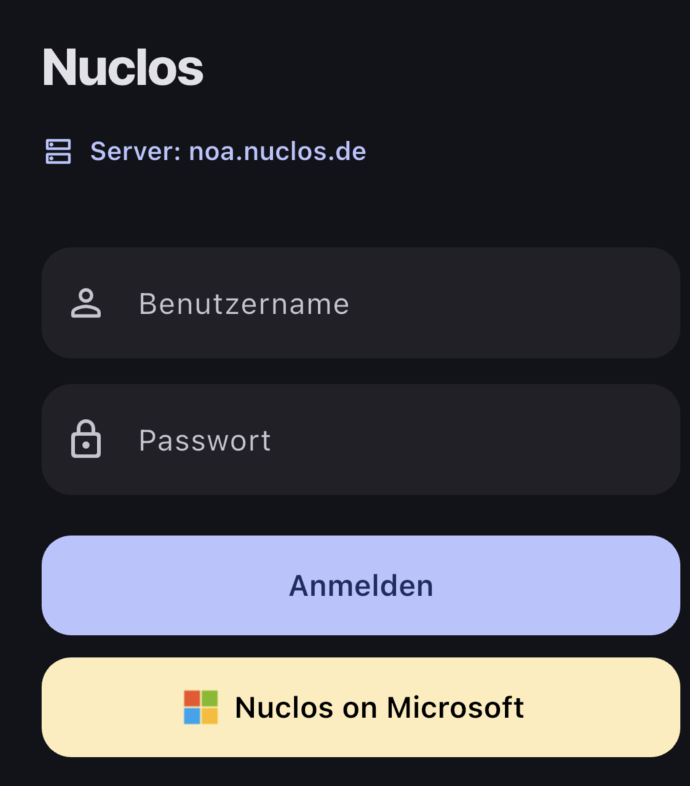
SSO button on the login screen (here „Nuclos on Microsoft“).
Prerequisite
SSO services are configured on the server by administration. Only active services appear in the app. Setup details: SSO configuration (callback URL, OAuth2 values, user mapping).
How to sign in via SSO
- Choose a server. For each configured service a dedicated login button appears – with the name, icon and brand colour delivered by the server.
- Tap the button: the app opens the provider's sign-in page in an embedded browser window (WebView).
- Sign in with the provider (including two-factor authentication if required).
- After a successful sign-in the window closes automatically and the app session is active.
How it works
Technically the app starts the flow via the server (authorization code grant with PKCE); the token exchange is done by the Nuclos server, not the app. The session then runs – as usual – via the Nuclos cookie (JSESSIONID).
User mapping
The server maps the person authenticated with the provider to a Nuclos user via e-mail or username (from the ID token). Without a mapping, no sign-in is possible.
Note
Biometric login is not available for SSO sessions – sign-in always goes through the provider.
Related pages
Überblick
Inhalte