
Language: Deutsch · English
 Planning board
Graphical resource planning on a timeline – resource/booking BO, wizard, relative date expressions and Groovy formatting.
HOW-TO APPLICATION DEVELOPER UPDATED: JUL 2026 APPLIES TO NUCLOS 4.2026.X
On this page
What is a planning board?
The planning board (also called resource planning; menu Configuration → Planning board) is a graphical interface for capacity and deployment planning of arbitrary resources on a timeline – people, machines, vehicles, rooms, workstations or production lines.
It supports day-to-day operational planning and makes utilization and bottlenecks visible at a glance: who or what is booked when, where is capacity still free, where do appointments overlap? The planning board thus replaces manually maintained planning tables and calendars with an always up-to-date, interactive view directly on your business data.
Basic principle
The planning board relates two kinds of business content:
- Resources – what is being planned (e.g. employee, machine, vehicle). They form the rows of the board.
- Bookings – the concrete allocation of a resource over a period (e.g. holiday, maintenance, project assignment, production order). They appear as coloured bars on the time axis.
In addition, milestones (points in time), relationships between bookings (succession/dependencies, GANTT) and background events (e.g. public holidays) can be displayed. Different booking types can be kept on the same resource – e.g. holiday, sickness and project times of an employee – each visually distinguishable.
Freely configurable
- display of resources, bookings and legend,
- time window and granularity (hours/days/weeks),
- highlighting of periods (weekends, holidays) and bookings (colours),
- context functions, milestones and GANTT view,
- permissions.
Use by end users
- move and extend bookings via drag & drop, rebook between resources by dragging into another row,
- create, copy and delete directly on the board, edit via double-click through the detail form,
- bulk-edit several bookings at once,
- convenience: choose period and time unit, switch axes (resources/time), filter resources and bookings, restrict to "only my entries" on shared boards, export/print the view,
- the personal display is kept per user; the board can refresh automatically at configurable intervals.
Automation
With rules bookings can be generated automatically (e.g. production orders from customer orders) or checked and notified on create/change/move/delete.
Configuration (example: utilization plan)
1. Resource and booking BO
Create a resource BO (e.g. employee) and a booking BO with a reference to the resource plus date from/to (optionally time from/to).
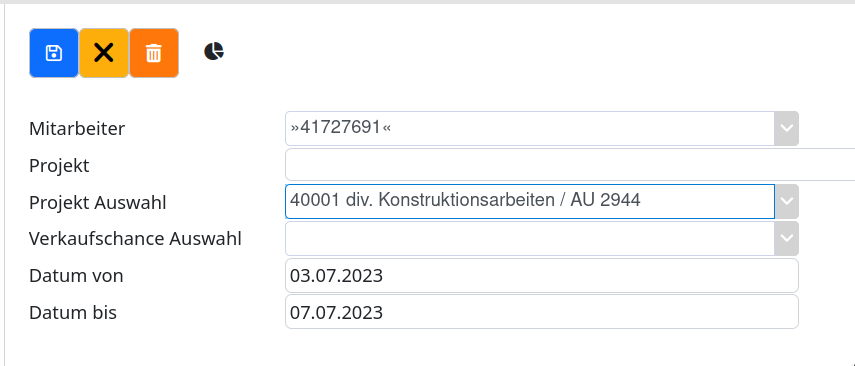
Booking BO for planning.
2. Wizard: name, label, BOs
The wizard guides you through internal name, label/menu path and selecting the resource BO (with sort field) and booking BO (with relationship).
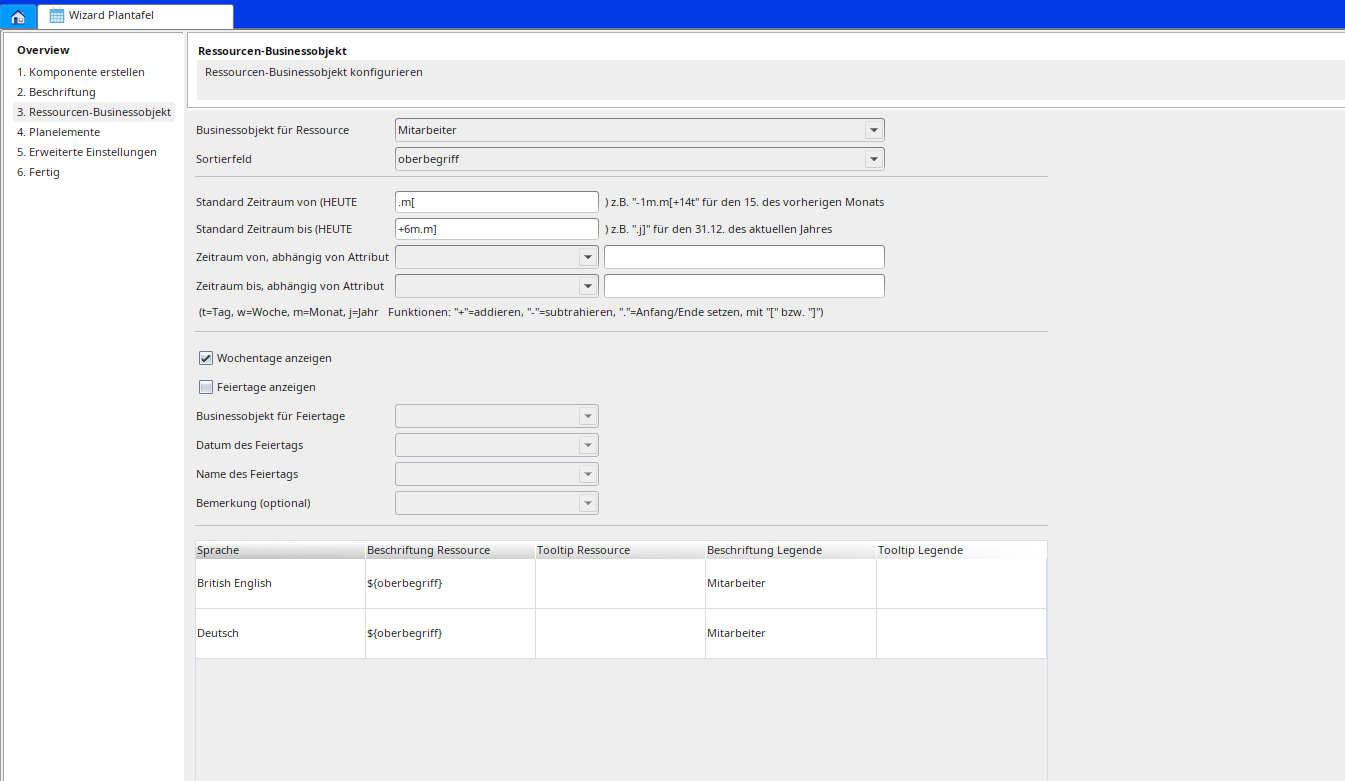
Resource/booking BO in the wizard.
Relative date expressions for the period
The default period is calculated relative to TODAY (evaluated left to right):
| Character | Meaning |
|---|---|
| + / - | add / subtract |
| . [ or . ] | jump to start [ or end ] |
| t / d | day |
| w | week |
| m | month |
| j / y | year |
| Period | From | To |
|---|---|---|
| current month | .m[ | .m] |
| current year | .j[ | .j] |
| until end of next month | .m[ | +1m.m] |
| until 15th of next month | .m[ | +1m.m[+14t |
In the table below you define the display and legend; field content via variables, e.g. resource ${strnachname} ${strvorname}, booking ${grundderbuchung}.
4. Plan elements & successor relations
Here you configure the displayed entries. Successor relations (e.g. critical path) are based on a BO with two reference fields to the booking BO and are drawn as a connection. Optional: staged view, milestones.
Script code (Groovy) for formatting
In the advanced settings two methods can be provided:
formatCell(clct, cell)– formats cells (resource/booking):cell.color,cell.text,cell.toolTip.formatBg(clct, interval, bg)– formats the background:bg.color(interval.start/interval.endare Date).
  def formatCell(clct, cell) {
    if (clct['meinFeld'] == 5) {
      cell.color = "#ff9999";
      cell.toolTip = "Text";
    }
  }
  def formatBg(clct, interval, bg) {
    if (interval.start <= new Date()) {
        bg.color = "#ffccff"
    }
  }


ODER
import java.text.SimpleDateFormat
def formatCell(clct, cell) {
Date currentDate = new Date();
def formatter = new SimpleDateFormat("dd/MM/yyyy");
String formatedDate = formatter.format(currentDate);
  if (clct['halbertag'] == true) {
    cell.color = "#ee8625";
    cell.text = clct['intmitarbeiter']+" ("+clct['von'] +" halber Tag "+clct['uhrzeit']+")";
  }else{
       cell.color = "#398db7";
       cell.text = clct['intmitarbeiter'] +" ("+formatedDate+" - "+clct['bis']+")";
  }
}
Notes
Attributes are accessed via clct['field'], colours as Color or hex string "#rrggbb". The methods must be entered manually in the settings under rule for formatting resource/booking (no dropdown). Missing properties only surface at runtime.
Related pages
Überblick
Inhalte