Jaspersoft subreport in the designer: detail band, data source, Intid, .jasper, subreport wizard, Use an existing report. |
Language: Deutsch · English
Step by step: build a subreport in Jaspersoft Studio, test it and embed it in the main report.
Auf dieser Seite |
Subreports suit tabular data or lists and can use their own data source. Here we build a subreport and test it together with the main report in the designer (example: order with order positions).
Analogous to the main report. For the subreport:
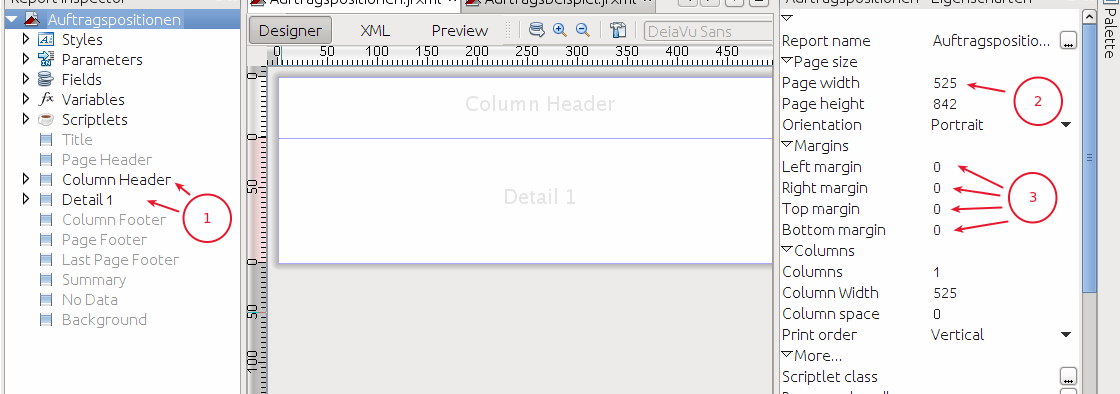
Subreport form in the designer.
Same database connection as the main report; procedure analogous to creating a data source in the designer.
Hauptreport |
The same parameter |
#,##0.00.<name>.jasper.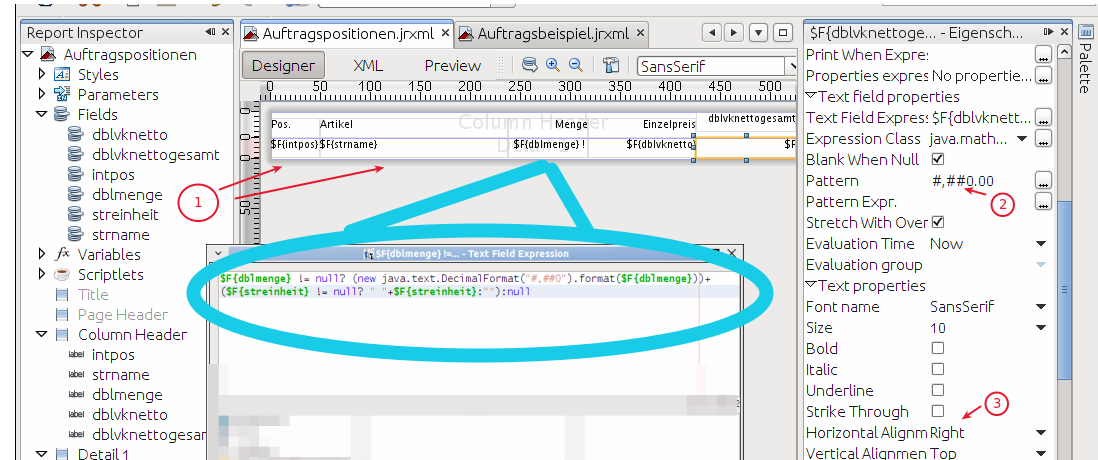
Fields in the subreport.
In the main form choose the Subreport component from the palette, select Use an existing report in the wizard and load the created .jasper. Then choose the data source and place the subreport.
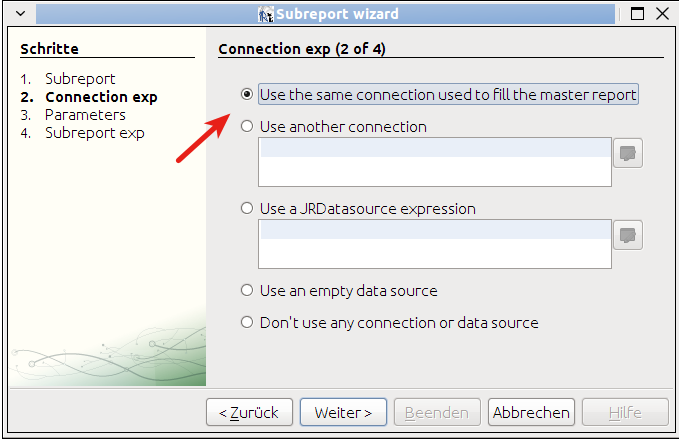
Subreport wizard in the main report.
The |