
Language: Deutsch · English
 Launcher (EN)
The Nuclos Launcher starts the Rich Client without Java Web Start – how to enable, install and configure it.
HOW-TO USER UPDATED: JUL 2026 APPLIES TO NUCLOS 4.2026.X
On this page
What the Launcher does
The Launcher downloads a server-side packaged Rich Client and starts it – independent of Java Web Start. It must be enabled twice: in the server configuration and as an install on the client.
1. Server configuration
Enable the Launcher option in the installer's last step. The server then builds a complete packaged desktop client for the Launcher to download and start.
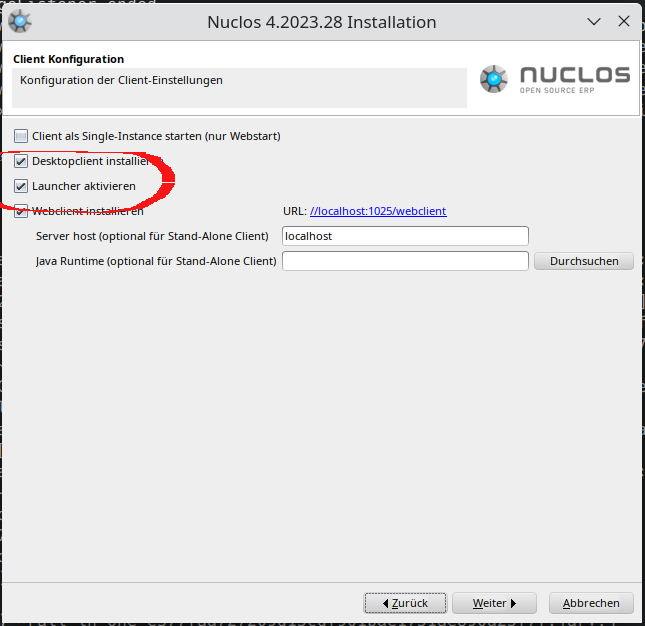
Enable the Launcher option in the installer.
2. Client installation
The Launcher is installed on the client as its own application – installer for Windows, standalone packages for Linux/macOS. The "full" variants bundle their own JRE.
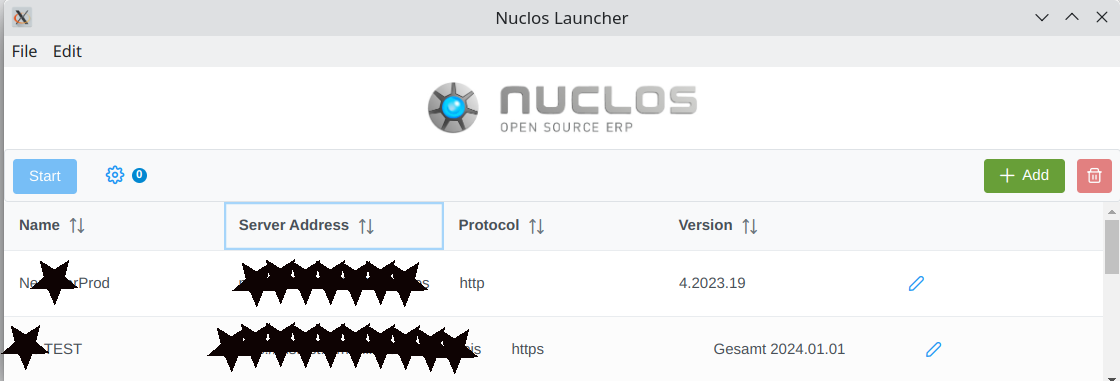
The Nuclos Launcher with added instances.
nuclos:// protocol
On supported platforms the nuclos:// protocol is registered. Instance links look like nuclos://<hostname>:<port>/<instance> (port 80 may be omitted).
JRE selection
The Launcher picks the Java runtime in this order:
- Java from the server
- Java defined in the Launcher
- Java found on the system
Place custom runtimes under <install-dir>/data/launcher/ (a ZIP containing a JRE/JDK), e.g. jre-windows-x64bit.zip.
Custom SSL certificates
For servers with a custom/invalid certificate, give the Launcher a TrustStore: a file named cacerts in its install directory (default password changeit).
Proxy
By default the Launcher auto-detects the system proxy. Under File → Settings you can set a proxy manually or disable it.
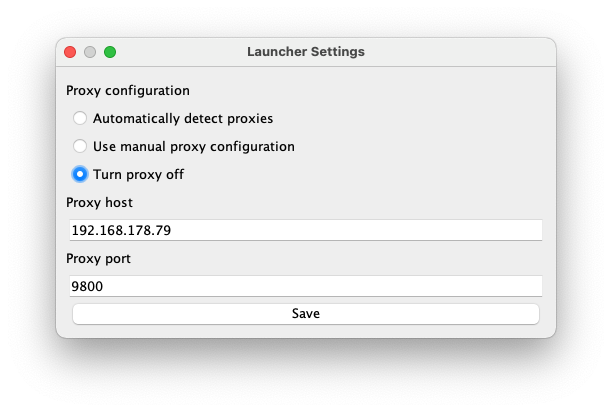
Launcher proxy settings.
Related pages
Überblick
Inhalte